Create and publish your first signup
A signup is a page where people choose something to do or bring. Each thing they can choose is a slot. By the end, you'll have a published signup and a link to send to people.
People who sign up don't need an account. All they need is the link.
Create the signup
Sign in to High Country Tech Signups. The first time you sign in, this creates your account.
On the Your signups page, choose New signup at the top.
Some sites can fill in a signup for you. If you see What are you organizing?, describe your signup in a few sentences. Then choose Draft my signup, and check every slot before you publish.
To follow the steps here instead, choose Skip, fill in by hand.
Type a name in Title, like “Snack duty — Spring season”. You can add a few lines about it in Description (optional).
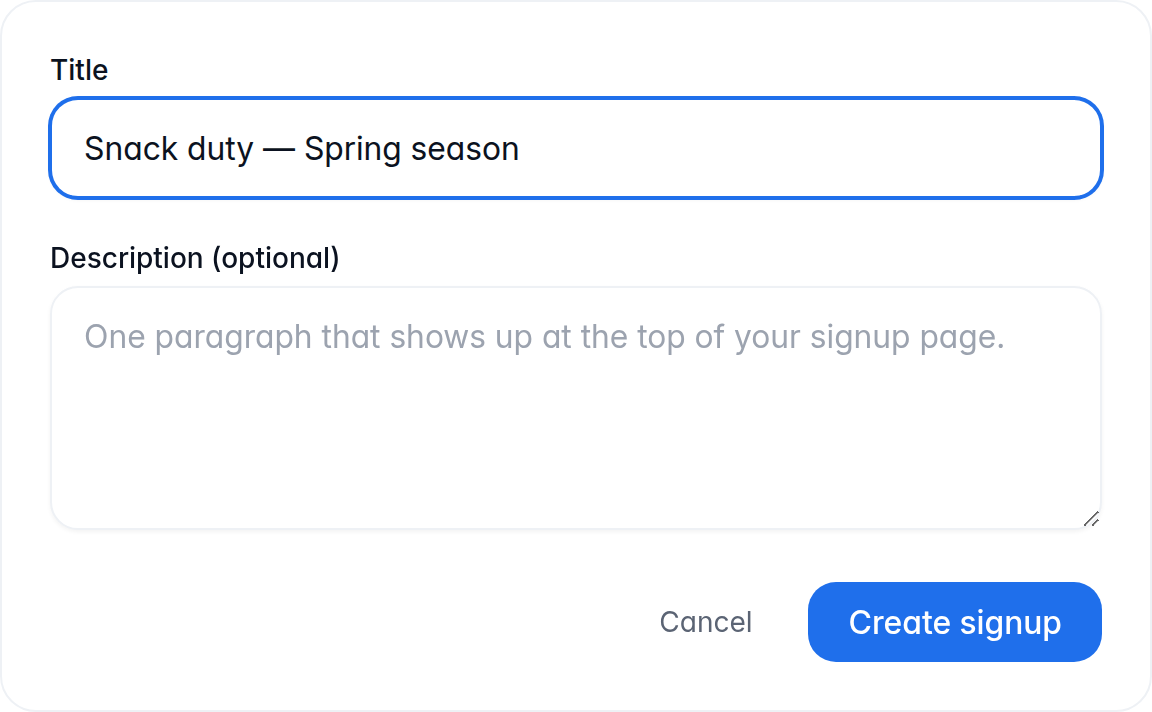
Choose Create signup. Your signup is saved as a draft. Nobody else can see a draft until you publish it.
Add slots
A slot is one thing people can sign up for, like snacks for one game. Each slot has one or more spots. A person can take one spot or several. A new signup starts with one empty slot.
Choose the slot marked Set what to open it.
In What, type what the slot is for, like “Fruit and water”.
Set the Date.
In Capacity, type how many spots this slot has. If two families bring snacks to each game, type 2.
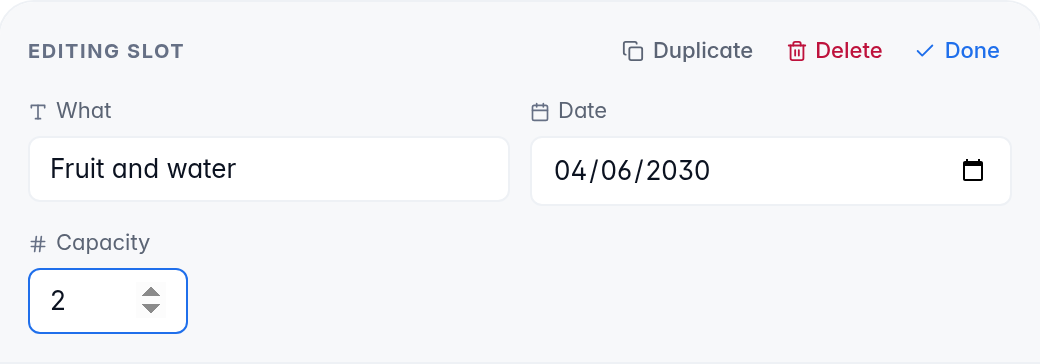
Choose Done to close the slot. Your changes save as you go.
For the next slot, choose Add a slot and fill it in the same way.
To copy a slot, open it and choose Duplicate. Then open the copy and change its date.
You can't undo deleting a slot. To remove one you don't need, open it and choose Delete. Don't leave a slot empty: people see it as Untitled slot.
Publish and share the link
On a computer, you can check your signup first. Choose Preview at the top of the page. It opens in a new tab and shows what people will see. Small screens, like most phones, don't show this button.
When you publish, anyone with the link can sign up. Choose Publish at the top of the page. On a phone, choose the three dots at the top, then Publish signup.
You'll see Signup published.
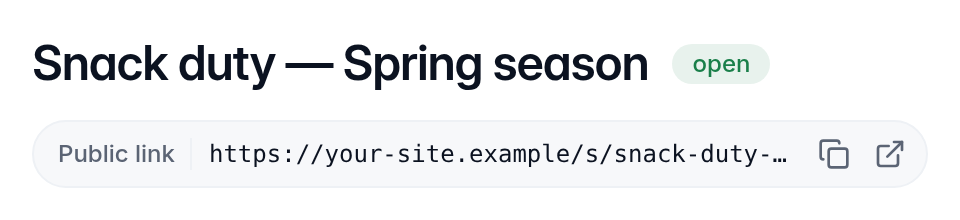
Next to Public link, choose the copy button. Send the link to people by email or in a group chat.
The link is there before you publish too. Until you publish, it only says the signup isn't ready.
What happens next
- People open the link and choose Sign up on a slot. They type their name and email address, and can add a note. You can make the email address optional, as shown below.
- A slot with more than one spot shows how many are left, like 1 left. People can take more than one spot at a time. When a slot is full, nobody else can choose it.
- Each person who gives an email address gets an email saying they're signed up. It has a link they can use to change or cancel. Everyone sees the link on screen after signing up, and people who gave no email address need to save it.
- Search engines are asked not to list signup pages. Anyone with the link can open yours, so share it only with the people you want.
Reminders
If a slot has a date, people who take it and gave an email address get a reminder email the day before. Someone who signs up later than that gets one about an hour after signing up, unless the slot is less than an hour away. Each reminder has a link to stop them.
Reminders are on for every new signup. To turn them off:
Choose Fields at the top of your signup.
Choose Date.
Clear Send a reminder email before this date, then choose Save.
Let people sign up without an email
A signup asks people for their email address unless you make it optional. Someone who leaves it blank gets no emails at all, not even reminders. They need to save the link they see after signing up. Only the browser they used remembers it.
To make the email address optional:
On a phone, the Settings link at the very top of the page is for your account, so skip it. Under your signup's title, choose the Settings tab.
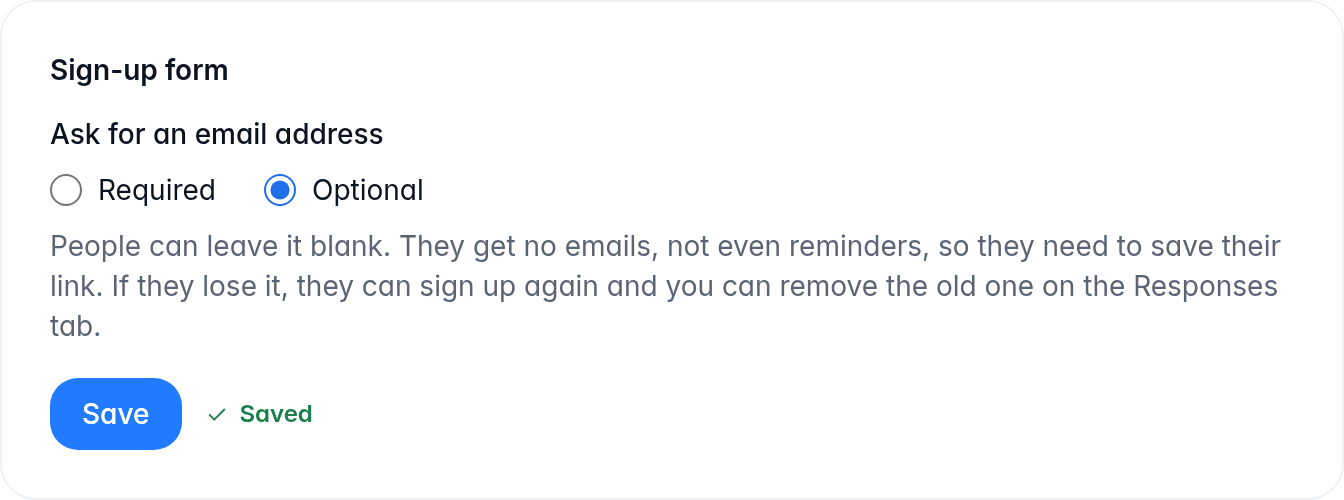
In Sign-up form, under Ask for an email address, choose Optional. Once you save, the email box on your signup says Email (optional).
Choose Save. You'll see Saved.
If someone who left it blank loses their link, ask them to sign up again. If their slot is full, remove them on the Responses tab first, so there's room. Otherwise they show up there twice, and the old one is higher up the list. Remove that one.
You can switch back to Required later. Only people who sign up after that are asked for an email address. Anyone who signed up without one keeps their spot.
Can't find what you need? Email [email protected].